Categories

Raw data scattered across email inboxes and shared drives costs teams hours every week. Google Forms to Google Sheets solves that problem by routing every submission directly into a structured spreadsheet the moment someone hits submit, with zero manual handling required.
Every response lands in the right column, labeled and ready to work with. This guide covers the connection methods, step-by-step setup, filtering techniques, real-world use cases, and best practices that help you get the most out of this workflow.
Whether you manage customer feedback, event registrations, or internal surveys, combining these two tools turns raw form data into organized, actionable information your team can use right away.
Pairing these two Google tools turns scattered form submissions into a single, structured workspace where your team can read, sort, and act on information without switching applications or copying data by hand. Here’s why this connection is essential:
Here’s why this connection is essential:
This setup is especially useful when you are exploring how Google Forms work in practical scenarios like customer feedback collection or employee surveys.
You can connect Google Forms to Google Sheets in several ways, each suited to different levels of complexity and workflow requirements.
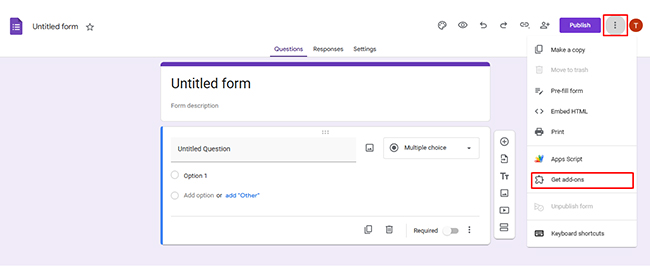
If you are just getting started with how to create a survey in Google Forms, the direct linking method is the fastest path to a working connection.
Setting up the link between these tools takes only a few minutes. Follow the steps below so your form responses flow automatically into a spreadsheet.
Go to Google Forms and open the form you want to connect; if you haven’t created one yet, select an existing form from your dashboard.
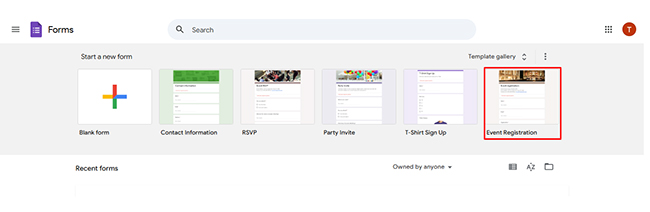
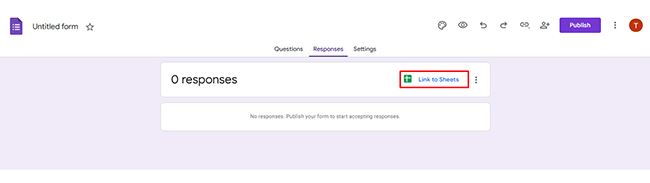
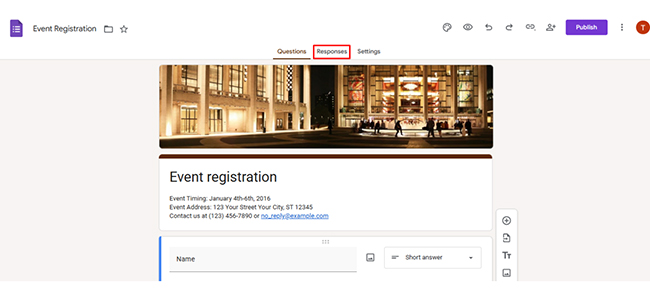
At the top of the form editor, click on the “Responses” tab, where all submitted answers are collected and managed.
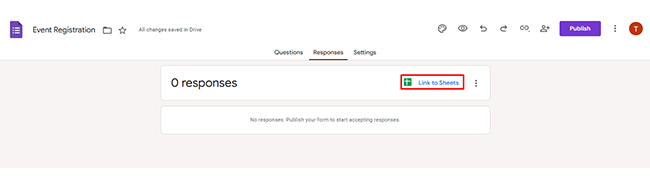
Inside the Responses tab, click the green Google Sheets icon to start linking your form to a spreadsheet.
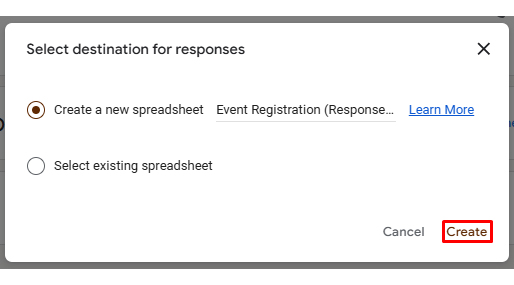
A pop-up will appear where you can either create a new spreadsheet or choose an existing one to store responses.
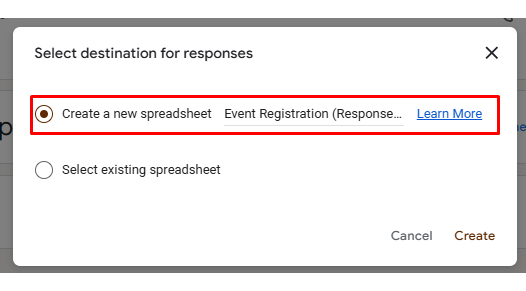
Click “Create” or “Select” to finalize the connection, and your form will now be linked to the chosen spreadsheet.
Submit a sample response in your form and check if it appears correctly in the sheet to ensure everything is working properly.
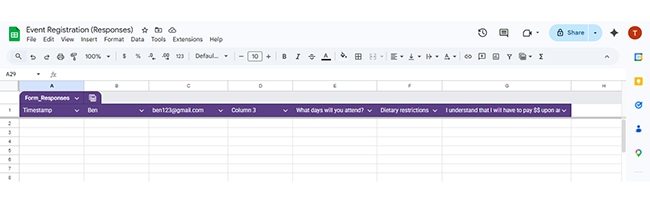
Completing these steps lets you efficiently link from Google Sheets and keeps your response data current at all times. This is particularly valuable when you are collecting survey questions such as multiple-choice, rating-scale, or open-ended prompts.
Once responses start arriving, filtering lets you isolate exactly the data you need for meaningful insights in your Google Forms-to-Google Sheets workflow.
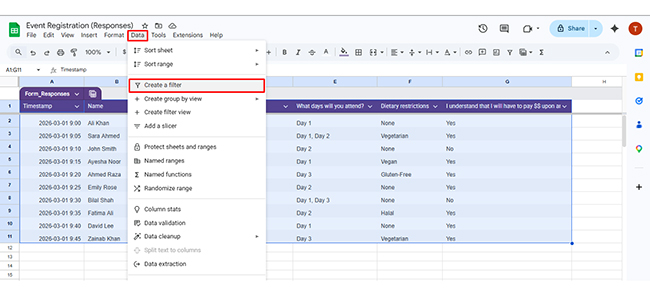
Select your data range, click Data → Create a filter, and use the dropdown arrows in each column to show only the data you need.
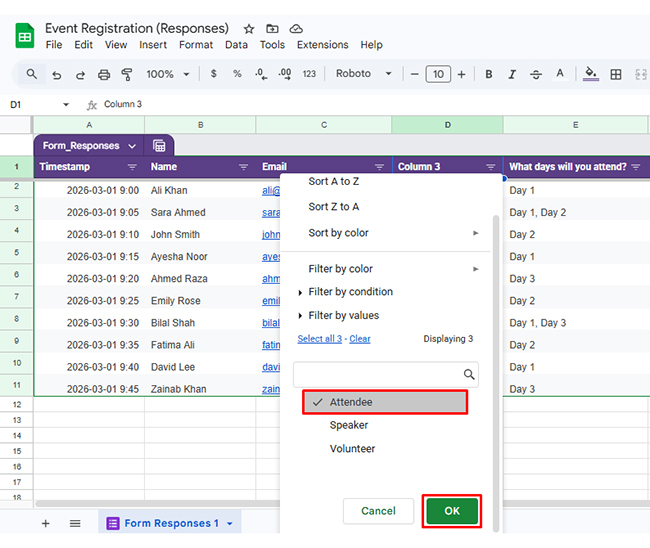
Click a column filter icon and set conditions, for example, click the filter icon in “What days will you attend?”, choose Filter by condition → Text contains, and enter “Day 1” to display relevant responses.
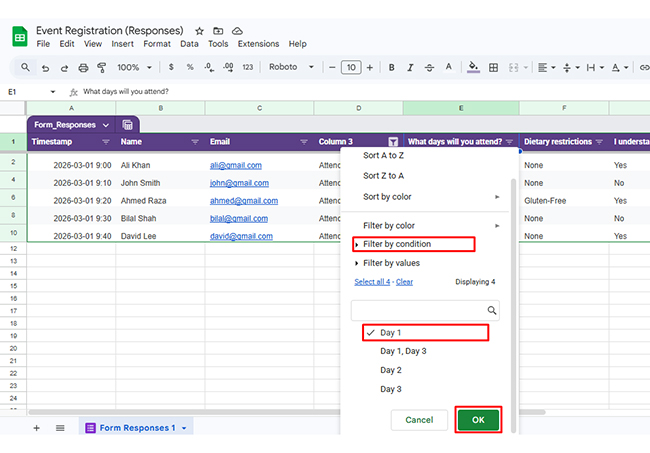
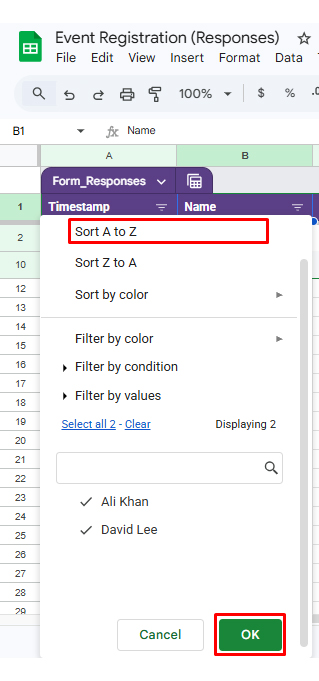
To sort data, use the dropdown in the “Name” column to select Sort A → Z, or sort the “Timestamp” column to view the latest entries first.
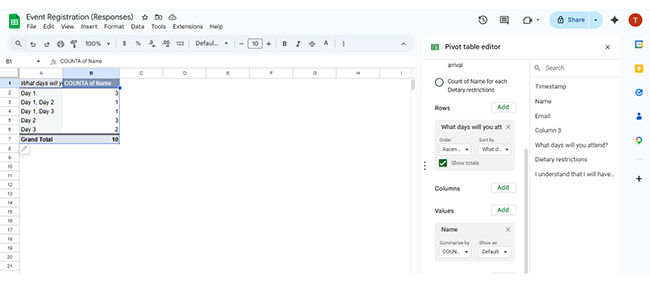
To create a pivot table, go to Insert → Pivot table, add “What days will you attend?” as Rows and “Name” as Values (COUNT) to summarize attendance.
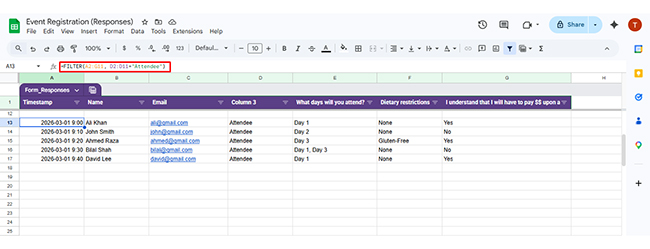
Apply formulas like FILTER, QUERY, or IF to automatically extract and display only relevant data based on defined rules. For example, click on an empty cell and enter a formula like =FILTER(A2:G11, D2:D11=”Attendee”), then press Enter.
This will automatically extract only attendee data into a new section, allowing you to analyze filtered results dynamically without modifying the original dataset.
These techniques make it far simpler to handle large datasets and support data analysis in Google Sheets for sharper, faster decision-making.
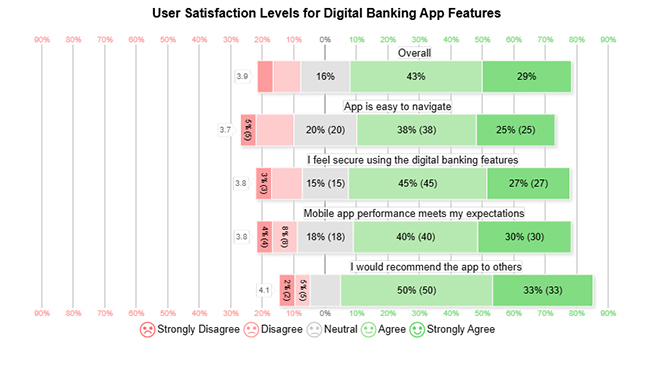
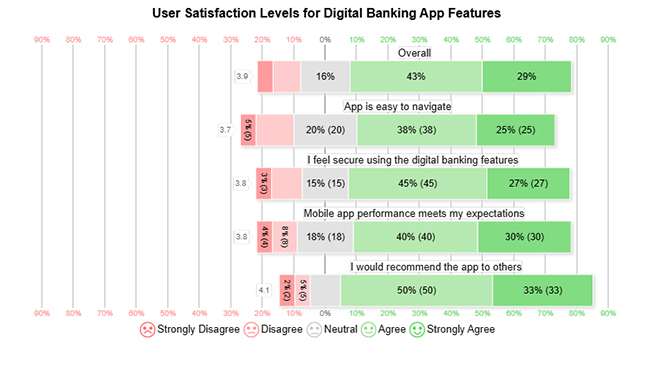
The digital banking app satisfaction analysis maps how user ratings across key product features reveal overall experience levels and areas of trust, pointing to both strengths and opportunities for improvement.
Example Insight: Shows user sentiment patterns across features to support product and experience decisions.
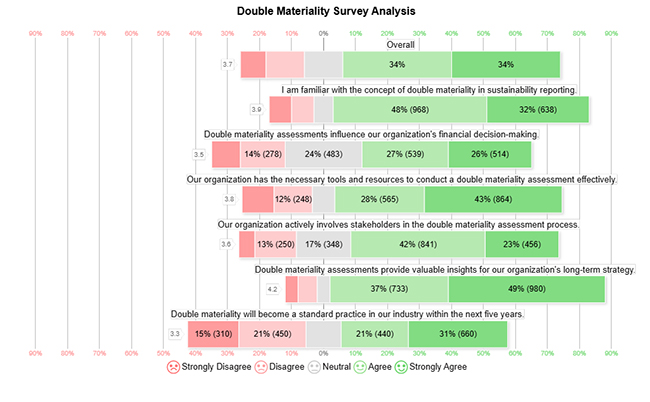
The double materiality survey analysis reflects broad agreement on the strategic value of the framework and its current organizational applications, while showing more varied views on how quickly the wider industry will adopt it.
Example Insight: Signals strong confidence in long-term value alongside measured uncertainty about sector-wide uptake.
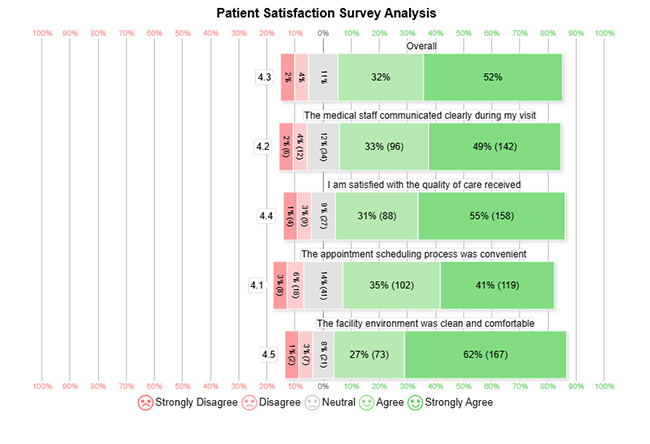
The patient satisfaction survey reveals a broadly positive experience, with cleanliness and quality of care drawing the highest scores, while appointment scheduling receives slightly lower ratings.
Example Insight: Points to strong overall satisfaction with a targeted opportunity to streamline the booking process.
Analyzing responses in Google Forms to Google Sheets converts collected submissions into decisions. Follow these structured steps to perform effective analysis:
Ensure your response data is properly organized with clear headers like name, attendance days, and categories. A clean structure makes it easier to filter, sort, and analyze responses without confusion.
Group responses based on categories such as attendee type or selected days. This helps you quickly identify patterns, like how many users are attending each day or category.
Use filtering and sorting to focus on specific responses, such as attendees for Day 1 or only speakers. This allows you to narrow down large datasets and analyze relevant information efficiently.
Create pivot tables to count and group responses, such as total participants per day. This simplifies large datasets and provides a clear summary for comparison.
Apply formulas like COUNTIF or FILTER to calculate totals or extract specific groups. This helps automate analysis and reduces manual effort.
Use charts like Bar or Pie Charts to present trends such as attendance distribution. Tools like ChartExpo can help create more advanced visuals for better survey results presentation.
Analyze the results to identify trends, such as peak attendance days or common preferences, and use these insights to improve planning and decision-making.
Linking form to Google Sheet gives individuals and teams a reliable system for handling response data without the overhead of manual processes.
These advantages make the setup ideal for anyone managing a survey in Google Sheets, particularly when response volumes are high or ongoing.
Getting the most out of Google Forms to Google Sheets requires a consistent approach to organization, accuracy, and workflow design.
Applying these habits will increase efficiency and help you manage Google Forms responses with far fewer errors or disruptions.
While linking a form to a Google Sheet is a powerful setup, several common issues are worth knowing about before you rely on it for high-stakes data.
Keeping these points in mind helps you spot problems early and apply Google Sheets tips and tricks that keep your workflow running reliably.
Open your form, go to the Responses tab, and click the Google Sheets icon to link it to a spreadsheet. Once that connection is set up, every new submission flows into the sheet automatically, making the entire Google Forms-to-Google Sheets data collection process hands-free.
Direct embedding is not supported. You can, however, link the two so that all form responses populate the spreadsheet automatically, giving you the same practical outcome without an embedded view.
Yes. Navigate to the Responses tab in your form and select the Sheets icon to attach an existing spreadsheet or create a new one. From that point, the sheet receives every response and stores it in a structured row.
Google Forms to Google Sheets is one of the most practical combinations in the Google Workspace ecosystem. By routing every form submission directly into a structured spreadsheet, teams eliminate data entry delays, reduce errors, and give everyone access to the same current source of information.
From filtering and pivot tables to formula-driven analysis and visual reporting, the methods and steps covered in this guide provide a complete toolkit for turning raw submissions into clear, usable findings. Apply the best practices outlined here, stay alert to the common challenges, and your data pipeline will stay accurate and efficient over the long term.
How much did you enjoy this article?



Product survey questions reveal what customers truly think. Learn how to ask the right ones and act on the survey results. Read on!
Learn how the 5-Point Performance Rating Scale improves employee evaluations with clear, consistent, and fair performance reviews across teams.

Fun Survey Questions can raise response rates, reveal patterns, and guide survey planning across teams, classrooms, and customer research. Read on!